TL;DR: Set up a Whapi.Cloud webhook listener in GoHighLevel's inbound webhook trigger, add your GHL webhook URL to Whapi settings, configure GHL contact creation rules by phone number, then add outbound webhooks from GHL actions back to Whapi API calls -- this two-way pipe lets WhatsApp events (messages, group joins, contact changes) trigger GHL workflows, and GHL workflows send WhatsApp messages back. A working example: group member joins WhatsApp в†’ webhook fires в†’ GHL creates/finds contact в†’ adds tag в†’ workflow sends welcome message в†’ contact is ready for sales automation.
How WhatsApp + GoHighLevel Integration Works
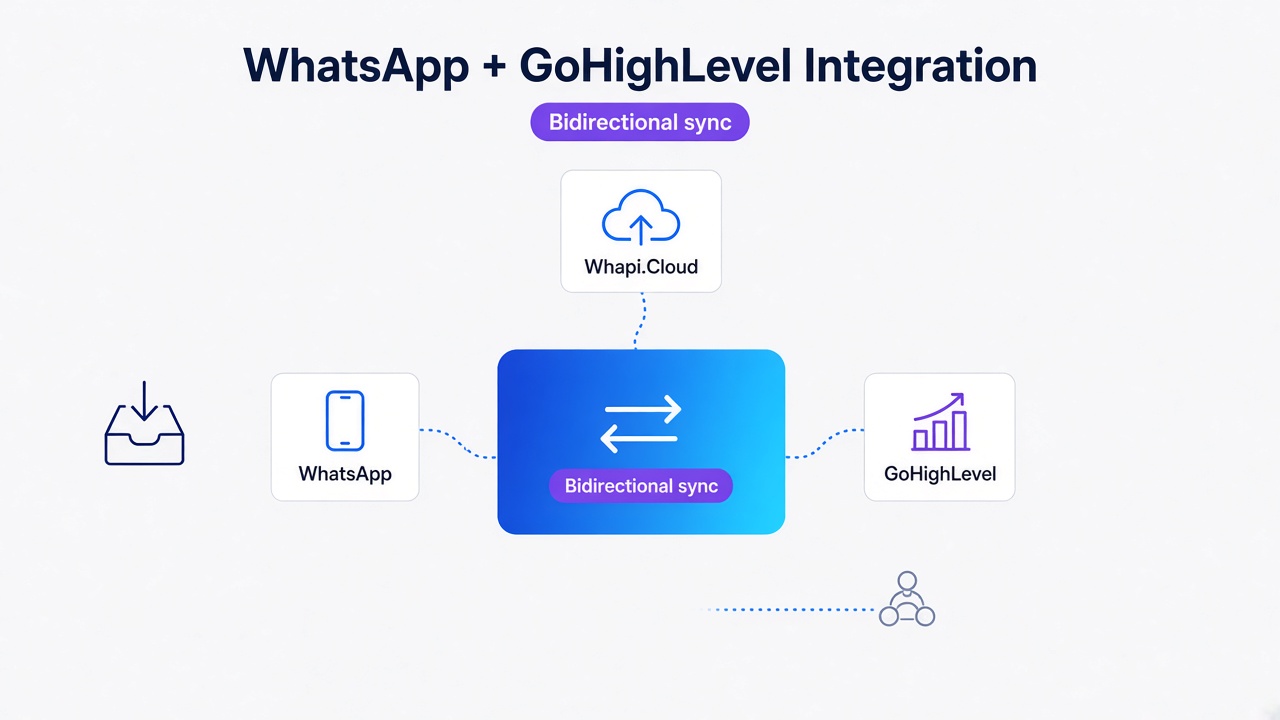
Bidirectional sync between WhatsApp and GoHighLevel is a pattern where Whapi.Cloud acts as the bridge. WhatsApp events (incoming messages, group membership changes, contact status) flow from your WhatsApp number through Whapi webhooks into GHL, triggering workflows and contact updates. GHL workflows then push data back to WhatsApp via outbound webhooks, sending messages, updating contact fields, or logging activity. This requires no Meta approval, no template pre-registration, and no carrier partnerships -- just three services connected by HTTP webhooks.
What You Can Sync Between WhatsApp and GoHighLevel
The real value lands here. WhatsApp-GHL integration is not about mirroring -- it is about automating the next step in your customer workflow.
-
Contacts: phone number from WhatsApp в†’ GHL finds or creates a contact; first name, last name, and custom fields sync one-way (WhatsApp в†’ GHL) or bidirectionally if GHL has an outbound webhook.
-
Messages: incoming WhatsApp message в†’ GHL conversation created or updated; GHL workflow reaches a "send WhatsApp message" action в†’ Whapi API call sends the message back to the customer.
-
Group events: member joins WhatsApp group, member leaves, member promotion в†’ Whapi webhook fires в†’ GHL inbound webhook triggers a workflow (tag them, assign owner, send welcome, create task).
-
Tags and custom fields: GHL can tag contacts based on WhatsApp behavior (e.g., tag "whatsapp-group-member"); those tags can trigger downstream workflows (nurture sequences, assignment rules, report filters).
-
Workflow triggers: any GHL workflow can listen for the inbound webhook event type and execute actions based on the payload (conditional logic, API calls, multi-step sequences).
The Bidirectional Sync Architecture
This is the load-bearing concept. Most teams think of WhatsApp integration as one-way: messages go out, but nothing comes back. Whapi + GHL is different because GoHighLevel orchestrates the return path.
Here is the flow:
INBOUND (WhatsApp в†’ Whapi в†’ GHL):

1. Customer acts on WhatsApp
   (sends message, joins group, updates status, etc.)

2. Whapi.Cloud receives the event
   and fires a webhook to your GHL inbound webhook URL
   Payload: { event, phone, name, group_id, timestamp, ... }

3. GHL Inbound Webhook Trigger
   receives the JSON payload
   Validates it (optional signature check)
   Extracts data: phone, name, event type

4. GHL Workflow executes
   Find or Create Contact (by phone)
   Add Tags (e.g., "whatsapp-group-member")
   Update Custom Fields
   Trigger nested workflows (send email, SMS, WhatsApp, assign owner)

OUTBOUND (GHL в†’ Whapi в†’ WhatsApp):

5. GHL Workflow Action fires
   (e.g., "Send WhatsApp Message" custom webhook)

6. Custom Webhook Calls Whapi API
   POST https://gate.whapi.cloud/messages/text
   Body: { to: phone, body: message_text }
   Headers: Authorization: Bearer YOUR_WHAPI_TOKEN

7. Whapi sends the message via WhatsApp
   to the customer's number

8. Customer receives the message on WhatsApp
   (no app notification, just appears in chat)

9. (Optional) Whapi webhook fires back to GHL
   marking the message as delivered/read
   GHL conversation updates with delivery status
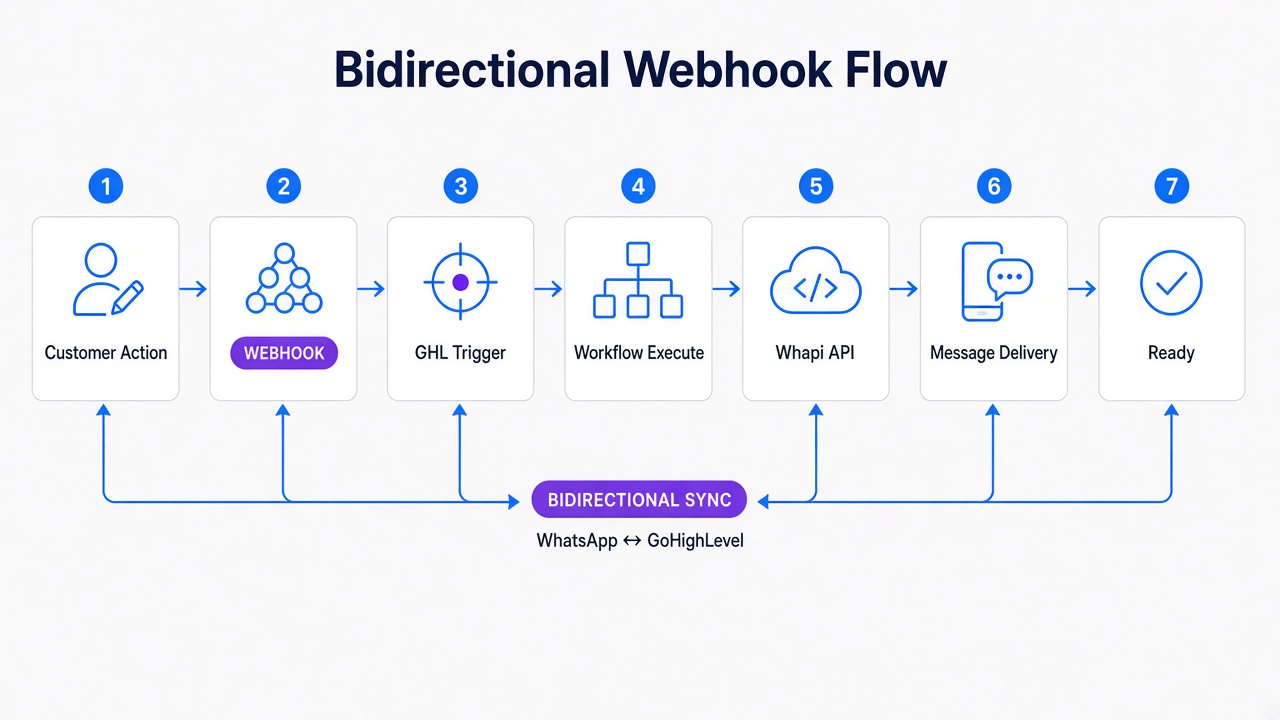
Step 1: Connect WhatsApp Events to GoHighLevel
Start here: configure the inbound webhook in GoHighLevel to receive WhatsApp events from Whapi.
In GoHighLevel:
- Go to Workflows в†’ create a new workflow (or open an existing one).
- Add a Trigger: search for "Inbound Webhook".
- GHL generates a unique webhook URL -- it looks like:
https://api.gohighlevel.com/webhooks/[WORKSPACE_ID]/[TRIGGER_ID] - Copy this URL. You will paste it into Whapi settings.
In Whapi.Cloud (panel.whapi.cloud):
- Go to Settings в†’ Webhooks.
- Add a new webhook URL. Paste the GHL inbound webhook URL you copied above.
- Select the event types you want to receive:
message.created(incoming messages)group.member.joined(group membership events)contact.status_changed(online/offline, typing, etc.)
- Save. Whapi will test the webhook by sending a test event to GHL.
- If GHL receives it, you will see a green checkmark. If not, check the GHL workflow trigger is active.
At this point, WhatsApp events flow into GHL. You can now build the workflow that processes them.
Step 2: Create and Update GHL Contacts from WhatsApp
GHL must recognize the person sending the WhatsApp message. The standard approach: match by phone number (or create a new contact if the number is unknown).
Inside your GHL workflow (after the Inbound Webhook trigger):
- Add an action: Find or Create Contact.
- Set the matching field to Phone.
- Map the incoming webhook payload phone number to the contact phone field.
- Payload path:
${trigger.body.data.phone}(adjust based on your Whapi webhook payload shape)
- Payload path:
- If a contact with that phone exists, GHL finds it. If not, GHL creates a new contact with:
- Phone:
${trigger.body.data.phone} - First Name:
${trigger.body.data.name}(optional; set to a default like "WhatsApp Contact" if not provided)
- Phone:
Store the contact for later use. GHL will expose the contact ID in a variable (e.g., ${contact.id}) that you can use in subsequent actions.
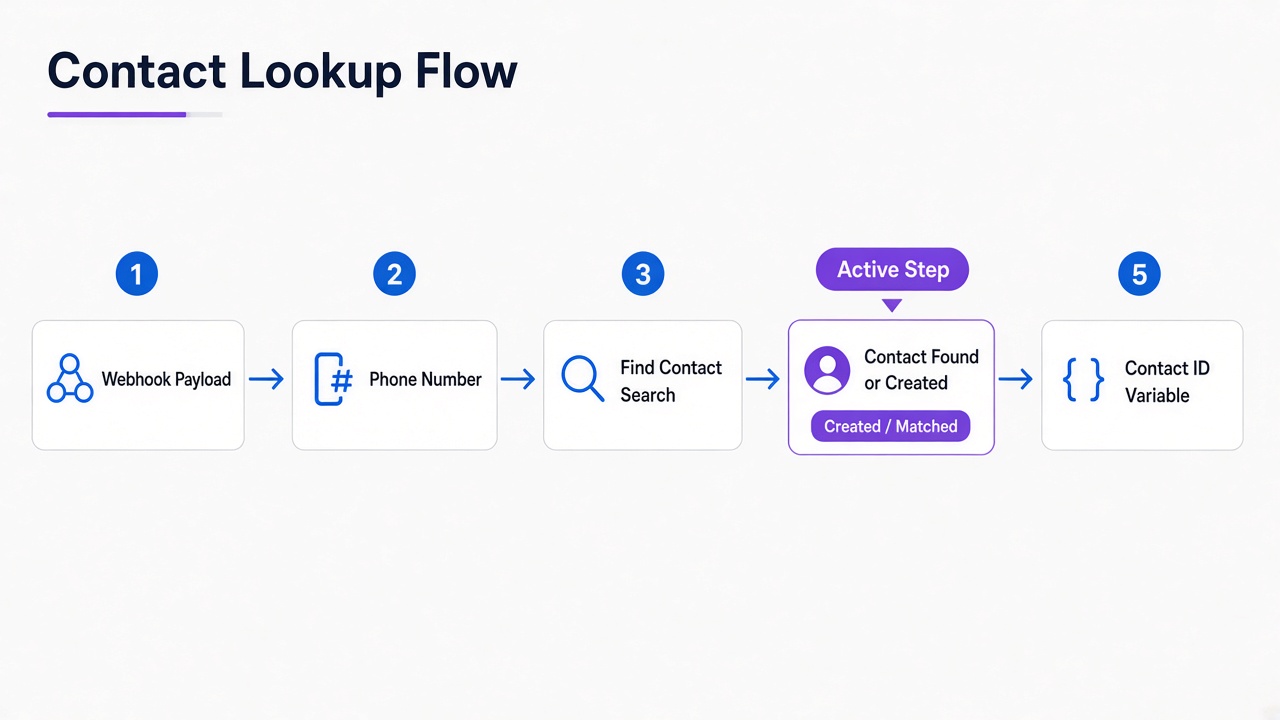
Step 3: Sync WhatsApp Messages with GHL Conversations
After the contact is created or found, GHL can ingest the WhatsApp message into a GHL Conversation. This is where the two-way sync becomes visible: the message appears in GHL as if it came from an SMS or email channel -- because to GHL, a Whapi webhook event is just another inbound message.
Inbound message (WhatsApp в†’ GHL): GHL's Inbound Webhook action automatically creates or updates a Conversation for the matched contact. The message body is stored in the conversation thread.
Outbound message (GHL в†’ WhatsApp): This requires a custom webhook (or a Whapi-specific action if GHL has integrated one directly, though most teams use custom webhooks for maximum flexibility).
Add an action to your GHL workflow:
- Custom Webhook (or "Send HTTP Request").
- Set method to POST.
- URL:
https://gate.whapi.cloud/messages/text - Headers:
Authorization: Bearer YOUR_WHAPI_TOKENContent-Type: application/json
- Body (JSON):
to: contact phone number (e.g.,${contact.phone})body: message text (e.g.,"Welcome to our group!")
{
  "to": "+1234567890",
  "body": "Welcome to the group, John! We are excited to have you. Check pinned messages for important updates."
}
When GHL executes this action, the message is sent to WhatsApp via Whapi. The customer receives it in their WhatsApp chat instantly (no delays, no queue).
Real Example: WhatsApp Group Join в†’ GHL Workflow в†’ Welcome Message
This is where theory meets reality. A team runs a WhatsApp group for their Real Estate agents. New agents are invited to the group. When they join, an automated workflow should: recognize them, tag them, assign a manager, and send a welcome with important links.
The webhook event (from Whapi):
{
  "event": "group.member.joined",
  "phone": "+1987654321",
  "name": "Sarah Martinez",
  "group_id": "[email protected]",
  "group_name": "Real Estate Team - North Region",
  "timestamp": 1695283200
}
GHL workflow steps (in order):
- Trigger: Inbound Webhook receives the
group.member.joinedevent. - Find or Create Contact: Search by phone
+1987654321. Sarah is new, so GHL creates a contact with name "Sarah Martinez". - Add Tags: Add
"whatsapp-group-member"and"realtor-north-region"to Sarah's contact. - Assign Owner: Route to the North Region manager (e.g., via a workflow rule: if tag = "realtor-north-region", assign to owner "[email protected]").
- Create Task: "Welcome Sarah to the team -- send onboarding docs".
- Custom Webhook (Send WhatsApp): Call Whapi API to send a personalized welcome message to Sarah's number.
- Message:
"Welcome, ${contact.firstName}! You are now part of the Real Estate Team. Check your email for onboarding docs. Questions? Reply here."
- Message:
- Log Note: Add a note to Sarah's contact: "Joined WhatsApp group on [date]. Workflow executed."
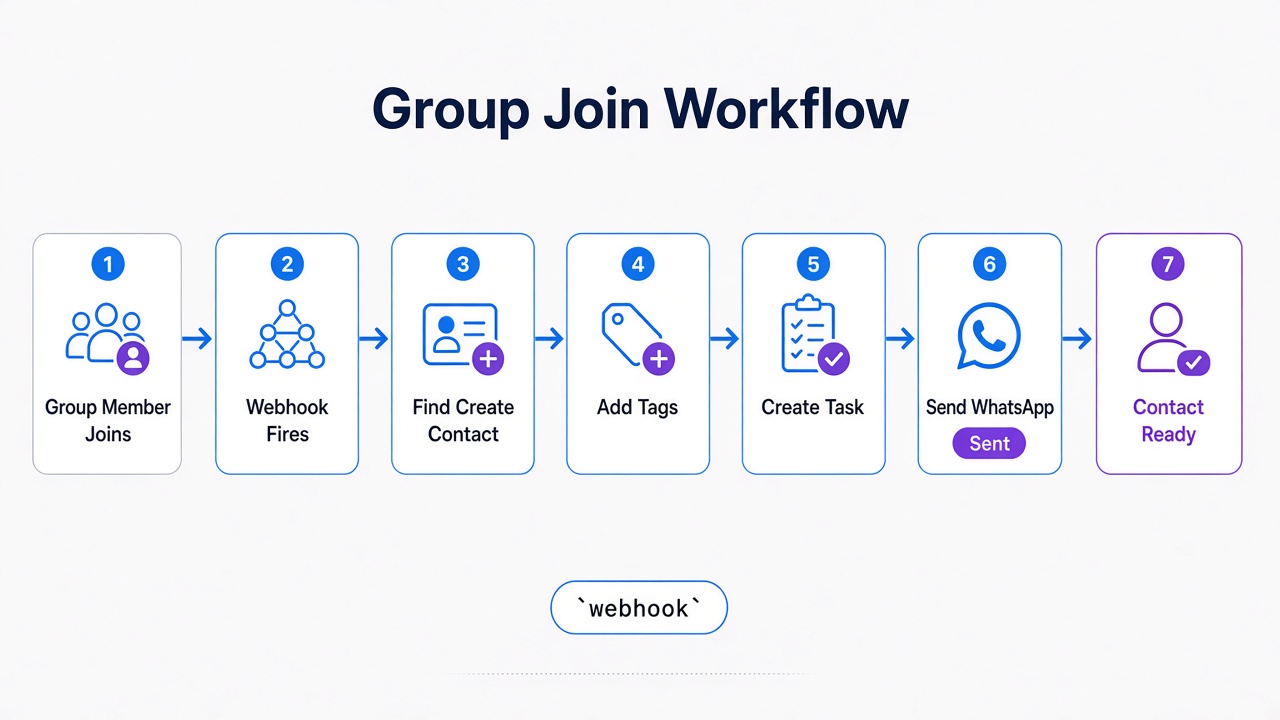
The result: Sarah joins a WhatsApp group, and within seconds her manager sees a new contact (Sarah) tagged and assigned, a task is created, and Sarah receives a personalized welcome message explaining what comes next. This pattern scales to hundreds of group joins per day.
Building More GoHighLevel Workflows with WhatsApp Triggers
The group-join example is one pattern. Here are others you can build once the bidirectional pipe is live:
-
New customer message в†’ ticket creation: incoming WhatsApp message triggers a ticket creation; if no open ticket exists, route to support queue and send auto-reply: "We got your message. Support responds in 2 hours."
-
Contact abandonment workflow: contact not active in WhatsApp for 30 days в†’ GHL sends re-engagement WhatsApp message, follow up with email, create sales task.
-
Order status updates: customer tagged "has-active-order" в†’ GHL sends daily WhatsApp: "Your order ships tomorrow. Tracking: [URL]."
-
Lead qualification flow: new contact joins group в†’ GHL asks qualifying questions via WhatsApp в†’ tag them "hot-lead" or "cold-lead" based on answers в†’ route to appropriate sales workflow.
-
Permission-based messaging: contact field "consent-marketing" = true в†’ GHL sends promotional WhatsApp; if false, transactional messages only. Compliance built into workflow.
Avoiding Sync Problems and Duplicate Events
Once you scale beyond a few test contacts, edge cases emerge. These are the most common pitfalls we encounter in production:
Problem 1: Duplicate contacts -- same phone matches multiple GHL contacts. Enforce unique phone constraint and use standardized format (always `+country_code`). Test with your own number: do two group-join events create one contact or two?
Problem 2: Phone normalization -- WhatsApp sends `+1234567890`, GHL stores `1234567890`. Normalize in GHL before "Find or Create" by ensuring `+` prefix and country code, or configure Whapi webhook payload to normalize upstream.
Problem 3: Webhook retry duplicates -- Whapi's at-least-once delivery means GHL may receive the same webhook twice if it takes 2+ seconds to respond 200 OK. Make workflows idempotent: check "Does this contact have tag 'welcome-sent' today?" If yes, skip. Use custom field flags to mark completed workflows.
Problem 4: Infinite loops -- GHL sends WhatsApp message в†’ message returns as inbound event в†’ GHL receives webhook в†’ sends another message. Detect GHL-initiated messages (tag prefix or sender = your number) and skip workflow -- treat as echo.
Problem 5: Delivery delays -- Whapi sends immediately, but WhatsApp may queue at scale (100+ messages/hour to one contact). Stagger sends, use templates for bulk outreach, monitor rate-limit headers.
WhatsApp + GoHighLevel Integration Checklist
Before launching to production, confirm all of these are in place:
-
Whapi webhook URL is live in GHL -- test by sending a WhatsApp message from another number; confirm GHL receives the inbound webhook (check GHL webhook logs).
-
Contact matching is working -- create a test contact in GHL with a known phone, send a WhatsApp message from that phone, confirm GHL finds the existing contact (not creating a duplicate).
-
Outbound WhatsApp messages send successfully -- execute the "Send WhatsApp" webhook action in GHL, confirm the message arrives in WhatsApp. Watch for 401 or 403 errors (auth token issue) and 404 errors (phone not connected in Whapi).
-
Workflows are idempotent -- manually trigger the same webhook payload twice; confirm tasks, tags, and messages are not duplicated.
-
Phone number format is consistent -- all phone numbers in GHL use the same format (e.g., `+1234567890` with `+` prefix). Check by querying a few contacts and comparing to Whapi webhook payloads.
-
Error handling is in place -- GHL workflow includes a conditional for "if webhook fails" (e.g., Whapi token expired, WhatsApp number not connected); add a fallback action like "send SMS" or "log error and alert admin".
-
Rate limits are respected -- if sending 100+ messages/hour, space them out (add 1-second delay between sends in GHL or use a queue). Monitor Whapi dashboard for API call counts and WhatsApp rate-limit warnings.
-
Logging and monitoring enabled -- GHL logs every inbound webhook and outbound message action (check GHL execution logs); Whapi dashboard shows webhook delivery status and message delivery confirmations.
Once all checkboxes are green, you can scale to production. Start with a small group (< 50 contacts) and monitor for 48 hours -- watch for duplicate messages, delivery failures, or contact mismatches. Then expand to your full list.
The bidirectional sync pattern demonstrated here is production-proven in real estate teams (group onboarding), e-commerce (order updates), and SaaS support (ticket routing). Each industry uses the same architecture, just different workflow logic. Whapi.Cloud handles the webhook delivery and message sending reliably, so you can focus on the GHL automation.
Ready to automate your WhatsApp + GHL workflow? Start with Whapi.Cloud -- no Meta verification required, message templates optional, full group and channel access built in.
Get Started with Whapi.Cloud